
.HU
🇭🇺 TLD characteristics
👥 Contact requirements
🛠️ Create
- 1
-
Create a contact with the registrant’s contact data. For a detailed description on how to create a contact, See the ➤ Create a new contact KB-article.
ℹ️ If you already have an existing registrant contact that you want to use for the create, you can skip this step and continue with step 2.
- 2
-
Add the required contact properties for .HU to the registrant contact. For a detailed description, See the ➤ Contact properties KB-article.
ℹ️ If the required contact properties are already added to the registrant contact, you can skip this step and continue with step 3.
- 3
- Request the create through our portal. For a detailed description on requesting a create, See the ➤ Create domain(s) KB-article.
- 4
-
Depending on whether the registrant contact already holds contact validation or not, the domain will created with an OK or Pending Validation status:
- Registrant contact already validated
✅ The create completes with domain status OK. - Registrant contact not validated
✅ The create completes with domain status PENDING_VALIDATION. The registrant must complete contact validation through email.
For instructions, See the ➤ Contact validation KB-article.
⚠️ If contact validation is not completed, the domain status remains Pending Validation and does not resolve.
- Registrant contact already validated
- 5
-
The create will complete when the registrant completes domain clearance and accepts registry terms and conditions + completes contact validation through an email that is sent directly by the registry to the registrant email address.
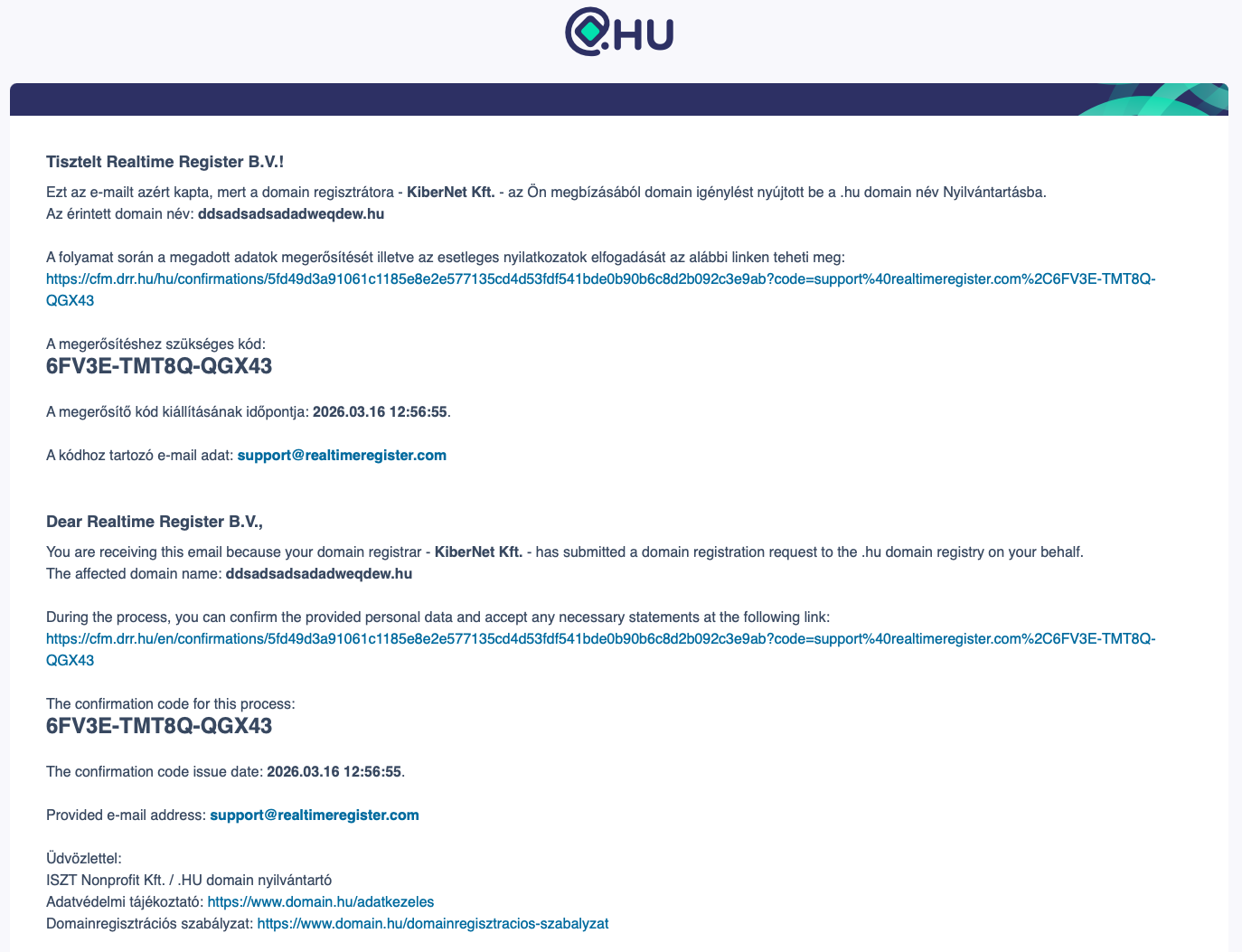
- ✉️ 2 separate emails are sent both from confirmation@domain.hu
1 of the 2 emails contains a clickable link with an option to accept contact validation & domain clearance. For instructions on completing the form, see step 5.
- Domain clearance & contact validation completed
✅ The create is completed after final registry approval. - Domain clearance & contact validation not completed
⚠️ The registrant must complete domain clearance & contact validation through email.
❌ If domain clearance is not completed in time, the create will fail after 30 days.
- ✉️ 2 separate emails are sent both from confirmation@domain.hu
- 5
-
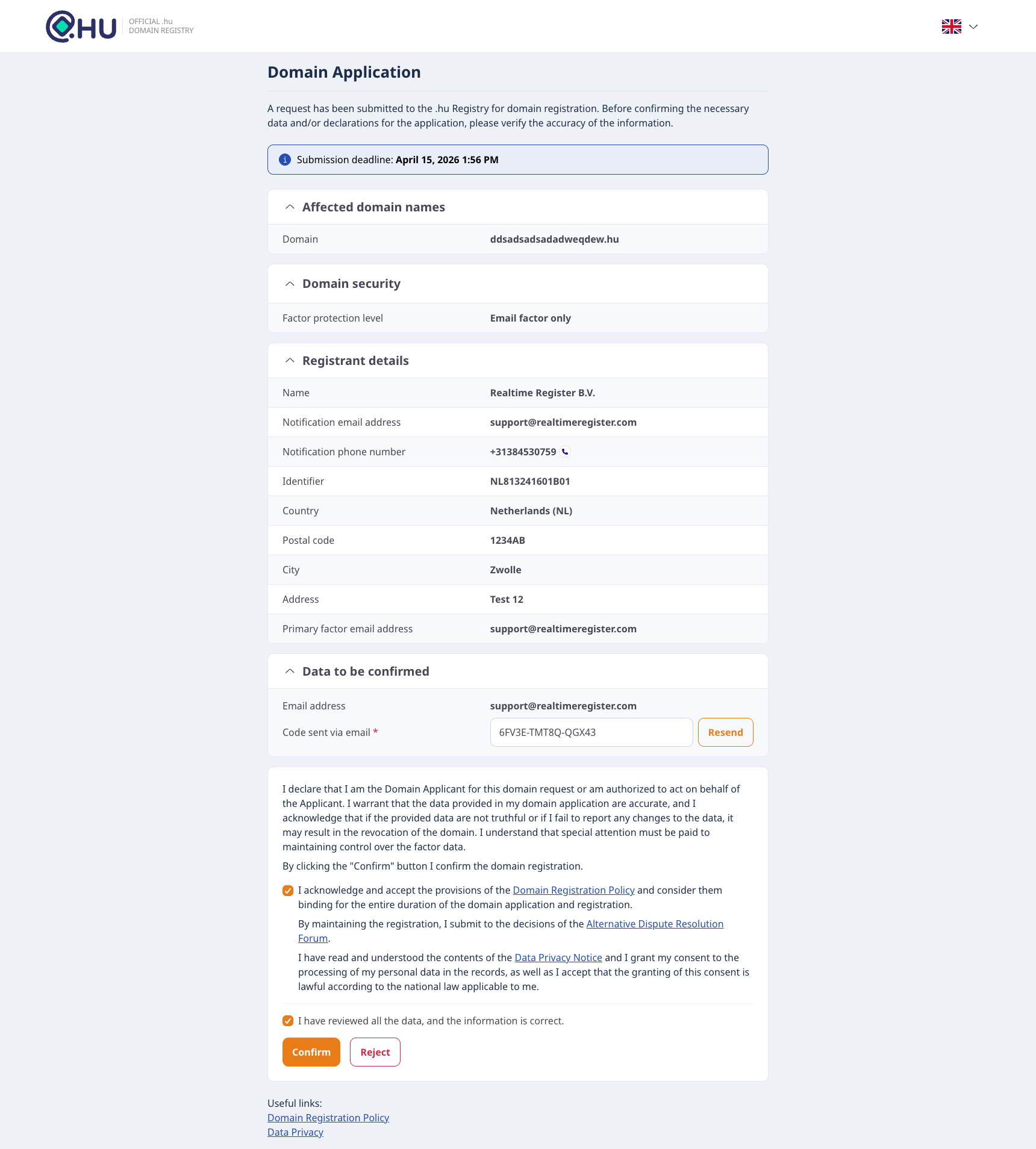
To complete domain clearance and contact validation, open the link in the email sent by the registry directly and have the registrant complete the webform.
- Complete form
✅ Make sure both checkmarks are checked and click Confirm. The first checkmark is for domain clearance the second for contact validation. - Reject from
❌ If incorrect contact data is displayed, click the Reject button and the create attempt will be failed. Correct the registrant data and request a new create if required.
⚠️ Please note that rejecting the terms will ultimately fail the create. Successful or not, the registry always charges create attempts even if they are rejected after they've been requested.
- Complete form
🔁 Transfer in
- 1
-
Create a contact with the registrant’s contact data. For a detailed description on how to create a contact, See the ➤ Create a new contact KB-article.
ℹ️ If you already have an existing registrant contact that you want to use for the transfer, you can skip this step and continue with step 2.
- 2
-
Add the required contact properties for .HU to the registrant contact. For a detailed description, See the ➤ Contact properties KB-article.
ℹ️ If the required contact properties are already added to the registrant contact, you can skip this step and continue with step 3.
- 3
- Request the transfer through our portal. For a detailed description on requesting a transfer, See the ➤ Transfer domain(s) KB-article.
- 4
-
If the registrant contact is not validated, the request cannot be sent to the registry and remains suspended until contact validation is completed.
- Registrant contact already validated
✅ proceed to step 5. - Registrant contact not validated
⚠️ The registrant must complete contact validation through email.
For instructions, See the ➤ Contact validation KB-article.
❌ If contact validation is not completed within 15 days, the request will fail.
- Registrant contact already validated
- 5
-
Once the registrant contact is validated, the transfer is requested at registry level and an approval request is sent to the registrant email:
- Sending email
confirmation@domain.hu - Approval accepted✅ Transfer completes instantly.
- No response
❌ Transfer fails after 30 days.
- Sending email
- 6
-
Once all requirements above have been met, the transfer is completed.
🔓 After completion, the domain cannot be transferred for 30 days.
♻️ After transfer, the domain is renewed and the expiry date is extended by 1 year.
♻️ Renew
- 1
- To request a renewal, See the ➤ Renew domains KB-article.
🕒 Restore
⚠️ Important: The restore does not include domain renewal. If a restore is requested before the domain’s original expiry date (before it entered redemption), a separate renewal request may be required to renew the domain.
- 1
- To request a restore, See the ➤ Restore domain KB-article.
🧾 Registrant change
- 1
-
Create a contact with the new registrant’s contact data. For a detailed description on how to create a contact, See the ➤ Create a new contact KB-article.
ℹ️ If you already have an existing contact that you want to use as the new registrant, you can skip this step and continue with step 2.
- 2
-
Add the required contact properties for .HU to the registrant contact. For a detailed description, See the ➤ Contact properties KB-article.
ℹ️ If the required contact properties are already added to the registrant contact, you can skip this step and continue with step 3.
- 3
- Request a domain update to the new registrant contact. For a detailed description on how to start the domain update process, See the ➤ Update domain(s) KB-article.
- 4
-
If the registrant contact is not validated, the request cannot be sent to the registry and remains suspended until contact validation is completed.
- Registrant contact already validated
✅ proceed to step 5. - Registrant contact not validated
⚠️ The registrant must complete contact validation through email.
For instructions, See the ➤ Contact validation KB-article.
❌ If contact validation is not completed within 15 days, the request will fail.
- Registrant contact already validated
- 5
-
The Registrant change will complete when the gaining registrant completes domain clearance and accepts registry terms and conditions + completes contact validation through email.
- ✉️ 2 separate emails are sent both from confirmation@domain.hu
1 of the 2 emails contains a clickable link with an option to accept contact validation & domain clearance. - Domain clearance & contact validation completed
✅ The Registrant change is completed after final registry approval. - Domain clearance & contact validation not completed
⚠️ The registrant must complete domain clearance & contact validation through email.
❌ If domain clearance is not completed in time, the create will fail after 30 days.
- ✉️ 2 separate emails are sent both from confirmation@domain.hu
- 6
-
To complete domain clearance and contact validation, open the link in the email sent by the registry directly and have the registrant complete the webform.
- Complete form
✅ Make sure both checkmarks are checked and click Confirm. The first checkmark is for domain clearance the second for contact validation. - Reject from
❌ If incorrect contact data is displayed, click the Reject button and the create attempt will be failed. Correct the registrant data and request a new create if required.
- Complete form
- 7
-
Once requested, the registrant change is completed instantly.
🔓 After completion, the domain cannot be transferred to another registrar/holder for 30 days.
🚮 Delete
- 1
- To request a delete, follow the instructions in the ➤ Delete domain KB-article.
📤 Transfer out
- 1
- Make sure no server or client transfer prohibited status is active for the domain to be transferred.
- 2
- To start the outgoing transfer, contact the gaining registrar for information on their incoming transfer procedure.
⚙️ Contact properties
To add contact properties for .HU (RegistryHU) to a contact, follow the instructions in the ➤ Contact properties KB-article until step #2. Once you select the .HU (RegistryHU) contact properties option, the fields shown below appear.

- 1
-
.ID card no. (IDCARD-OR-PASSPORT-NUMBER): ID-card number or passport number belonging to the registrant
- Applicable for natural persons.
- In some cases also required for companies, if so a document number belonging to an authorised person to sign for the company may be
- 2
-
.AU owner type (AU-DOMAIN-RELATIONTYPE): VAT-number belonging to the registrant company.
Provide a valid EU VAT-number belonging to the registrant.
⚠️ Incorrect data may invalidate the.
- 3
- Click Save properties to confirm adding the properties to the contact.