
.CLICK
➤ Create
➤ Renew
➤ Restore
➤ Delete
🖱️ TLD characteristics
👥 Contact requirements
🆕 Create
- 1
-
Create a contact with the registrant’s contact data. For a detailed description on how to create a contact, See the ➤ Create a new contact KB-article.
ℹ️ If you already have an existing registrant contact that you want to use for the registration, you can skip this step and continue with step 2. - 2
-
Add contact properties for .CLICK (UniRegistry) to the registrant contact. For instructions on adding contact properties for .CLICK to a contact, See 📘 Contact properties in this knowledge base article.
ℹ️ If .CLICK contact properties are already added to the registrant contact, you can skip this step and continue with step 3. - 3
- Request the create through our portal. For a detailed description on requesting a create, See the ➤ Create domain(s) KB-article.
- 4
- Once requested, the create will complete real-time.
- 5
-
Depending on whether the registrant contact already holds contact validation or not, the created domain will hold an OK or Pending Validation status:
- Registrant contact already validated
✅ The create completes with domain status OK. - Registrant contact not validated
⚠️ The create completes with domain status PENDING_VALIDATION. The registrant must complete contact validation through email.
For instructions, See the ➤ Contact validation KB-article.
- Registrant contact already validated
🔁 Transfer in
⚠️ Important: gTLD transfers are processed in stages and will remain suspended until all transfer requirements are met. The most common blockers are pending contact validation and FOA (Form Of Authorization) rejection by the registrant.
- 1
-
Create a contact with the registrant’s contact data. For a detailed description on how to create a contact, See the ➤ Create a new contact KB-article.
ℹ️ If you already have an existing registrant contact that you want to use for the transfer, you can skip this step and continue with step 2. - 2
-
Add contact properties for .CLICK (UniRegistry) to the registrant contact. For instructions on adding contact properties, See 📘 Contact properties in this knowledge base article.
ℹ️ If contact properties are already added to the registrant contact, you can skip this step and continue with step 3. - 3
- Request the transfer through our portal (authcode required). For a detailed description on requesting a transfer, See the ➤ Transfer domain(s) KB-article.
- 4
-
When the transfer is requested and if the registrant contact is not validated, the transfer cannot be requested at registry level and remains suspended until contact validation is completed.
- Registrant contact already validated
✅ proceed to step 5. - Registrant contact not validated
⚠️ The registrant must complete contact validation through email.
For instructions, See the ➤ Contact validation KB-article.
❌ If contact validation is not completed within 14 days, the transfer will fail.
- Registrant contact already validated
- 5
-
Once contact validation is completed (or the registrant contact is already valid), the transfer is requested at registry level and an FOA (Form Of Authorisation) is sent to the registrant email address:
- FOA accepted
✅ Transfer completes instantly. - FOA rejected
❌ Transfer fails instantly. - FOA ignored
⏱️ Transfer auto-completes in 5 days.
- FOA accepted
- 6
- Once the FOA has been accepted or ignored, the transfer will be completed according to the above mentioned schedule.
♻️ Renew
- 1
- To request a renewal, follow the instructions in the ➤ Renew domains KB-article.
🕒 Restore
- 1
- To request a restore, follow the instructions in the ➤ Restore domain KB-article.
🔄 Registrant change
⚠️ Important: gTLD registrant changes are processed in stages and will remain suspended until all requirements are met. The most common blockers are pending contact validation and FOA (Form Of Authorization) rejection by the registrant.
- 1
-
Create a contact with the new registrant’s contact data. For a detailed description on how to create a contact, See the ➤ Create a new contact KB-article.
ℹ️ If you already have an existing contact that you want to use as the new registrant, you can skip this step and continue with step 2. - 2
-
Add contact properties for .CLICK (UniRegistry) to the new registrant contact. For instructions on adding contact properties, See 📘 Contact properties in this knowledge base article.
ℹ️ If contact properties are already added to the new registrant contact, you can skip this step and continue with step 3. - 3
- Open the domain detail page of the .CLICK domain you wish to update and request an update to the new registrant contact. For a detailed description on how to start the domain update process, See the ➤ Update domain(s) KB-article.
- 4
-
When the registrant change is requested and if the registrant contact is not validated, the registrant change cannot be requested at registry level and remains suspended until contact validation is completed.
- Registrant contact already validated
✅ proceed to step 5. - Registrant contact not validated
⚠️ The registrant must complete contact validation through email.
For instructions, See the ➤ Contact validation KB-article.
❌ If contact validation is not completed within 14 days, the registrant change will fail.
- Registrant contact already validated
- 5
-
Once contact validation is completed, a FOA (Form Of Authorization) is sent to the new and/or old registrant email address to confirm the material change. Approval requirements depend on the Designated Agent settings selected during the domain update:
- Designated agent: New
⚠️ Approval is required through the old registrant email address. - Designated agent: Old
⚠️ Approval is required through the new registrant email address. - Designated agent: Both
✅ No approval through email is required and the registrant change is completed instantly. - No designated agent
⚠️ Approval is required through both the old and new registrant email addresses.
- Designated agent: New
- 6
-
Once the FOA has been sent, the registrant change completes based on the FOA outcome:
- FOA accepted
✅ Registrant change completes instantly. - FOA rejected
❌ Registrant change fails instantly. - FOA ignored
❌ Registrant change auto-fails in 14 days.
- FOA accepted
📤 Transfer out
- 1
- Make sure no server or client transfer prohibited status is active for the domain to be transferred.
- 2
- To start the outgoing transfer, contact the gaining registrar for information on their incoming transfer procedure.
🚮 Delete
- 1
- To request a delete, follow the instructions in the ➤ Delete domain KB-article.
🧩 Contact properties
To add contact properties for .CLICK (UniRegistry) to a contact, follow the instructions in the ➤ Contact properties KB-article and follow the instructions up until step #2. Once you select the .CLICK (UniRegistry) contact properties option, the fields below appear.
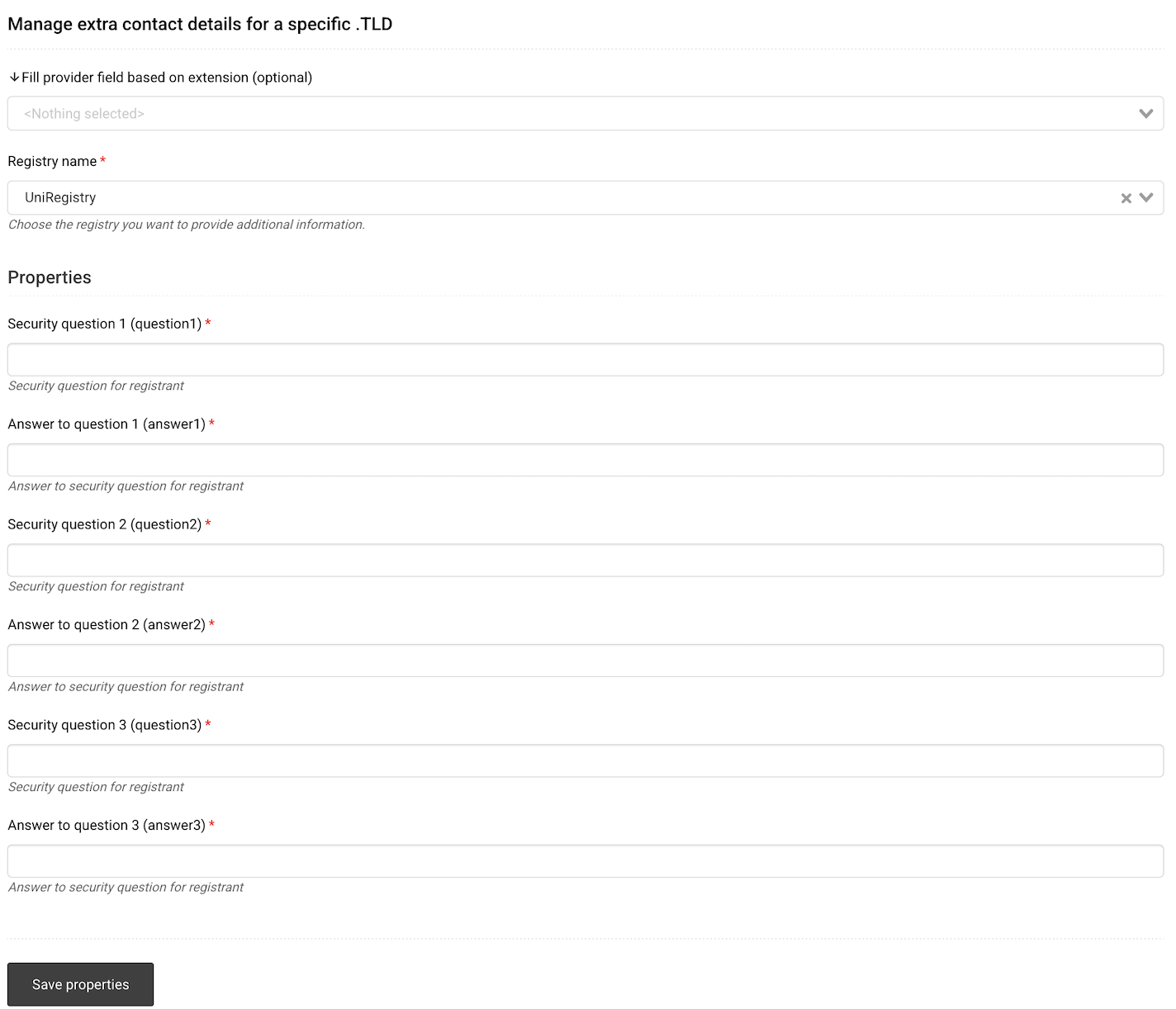
‼️ Important: The security questions are in place for verification purposes. Make sure the questions can be answered by the registrant at all times to avoid verification issues when a domain verification procedure is kicked off. Please make sure that you:
⚠️ Select a question that the registrant can answer consistently if verification is required.
⚠️ Do not reuse the same question across multiple fields.
- 1
- Security question 1 (question1): First security question for the registrant.
- 2
- Answer to question 1 (answer1): Answer to security question 1.
- 3
- Security question 2 (question2): Second security question for the registrant.
- 4
- Answer to question 2 (answer2): Answer to security question 2.
- 5
- Security question 3 (question3): Third security question for the registrant.
- 6
- Answer to question 3 (answer3): Answer to security question 3.
- 7
- Click “Save properties” to confirm adding properties to the contact. Once saved, you can use this contact as the registrant contact for creating, transferring in or updating .CLICK domains.