
.EE
➤ Create
➤ Renew
➤ Restore
➤ Delete
🇪🇪 TLD characteristics
👥 Contact requirements
🆕 Create
⚠️ Important: Creates for .EE are subject to a Domain Clearance form. Once you request the create, our support team will send the clearance form through email. The create can only be completed after the registrant has signed the form and it is returned to our support team. For more information, See 📄 Document requirements in this knowledge base article.
- 1
-
Create a contact with the registrant’s contact data. For a detailed description on how to create a contact, See the ➤ Create a new contact KB-article.
ℹ️If you already have an existing registrant contact that you want to use for the registration, you can skip this step and continue with step 2.
- 2
-
Add contact properties for .EE (EERegistry) to the registrant contact. For instructions on adding contact properties for .EE to a contact, See 📘 Contact properties in this knowledge base article.
ℹ️If .EE contact properties are already added to the registrant contact, you can skip this step and continue with step 3.
- 3
-
Request the create through our portal. For a detailed description on requesting a create, See the ➤ Create domain(s) KB-article.
⚠️Once the create is requested, our support staff will send a Domain Clearance form through email. Have the registrant sign the clearance form and return it to our support staff through email.
- 4
-
Once domain clearance is approved, the create will be completed real-time.
❌If domain clearance is not completed in 14 days, the create process will auto-fail.
🔁 Transfer in
⚠️ Important: When a registrant change is included in a transfer, the transfer is subject to a Domain Clearance form. Once you request a transfer that includes a registrant change, our support team will send the clearance form through email. The transfer can only be completed after the registrant has signed the form and it is returned to our support team through email. For more information, See 📄 Document requirements in this knowledge base article.
- 1
-
Create a contact with the registrant’s contact data. For a detailed description on how to create a contact, See the ➤ Create a new contact KB-article.
ℹ️If you already have an existing registrant contact that you want to use for the transfer, you can skip this step and continue with step 2.
- 2
-
Add contact properties for .EE (EERegistry) to the registrant contact. For instructions on adding contact properties for .EE to a contact, See 📘 Contact properties in this knowledge base article.
ℹ️If .EE contact properties are already added to the registrant contact you’re going to use, you can skip this step and continue with step 3.
- 3
-
Request the transfer through our portal. For a detailed description on requesting a transfer, See the ➤ Transfer domain(s) KB-article.
- If a trade is not included in the transfer
✅ Transfer completes real-time. - If a trade is included in the transfer
⚠️ Our support staff will send a Domain Clearance form through email. Have the registrant sign the clearance form and return it to our support staff through email.
- If a trade is not included in the transfer
- 4
-
Once domain clearance is approved, the transfer will complete real-time.
❌If domain clearance is not completed in 14 days, the transfer process will auto-fail.
♻️ Renew
- To request a renewal, follow the instructions in the ➤ Renew domains KB-article.
🕒 Restore
- To request a restore (if supported for the specific .EE domain), follow the instructions in the ➤ Restore domain KB-article.
🔄 Registrant change
⚠️ Important: Registrant changes for .EE are subject to the Domain Clearance form. Once you request the registrant change, our support team will send the clearance form through email. The registrant change can only be completed after the registrant has signed the form and it is returned to our support team. For more information, See 📄 Document requirements in this knowledge base article.
- 1
-
Create a contact with the new registrant’s contact data. For a detailed description on how to create a contact, See the ➤ Create a new contact KB-article.
ℹ️If you already have an existing contact that you want to use as the new registrant, you can skip this step and continue with step 2.
- 2
-
Add contact properties for .EE (EERegistry) to the new registrant contact. For instructions on adding contact properties for .EE to a contact, See 📘 Contact properties in this knowledge base article.
ℹ️If .EE contact properties are already added to the new registrant contact, you can skip this step and continue with step 3.
- 3
-
Open the domain detail page of the .EE domain you wish to update and request an update to the new registrant contact. For a detailed description on how to start the domain update process, See the ➤ Update domain(s) KB-article.
⚠️For completing the registrant change, our support staff will send a Domain Clearance form through email. Have the registrant sign the clearance form and return it to our support staff through email.
- 4
-
Once domain clearance is approved, the registrant change will complete real-time.
❌If domain clearance is not completed in 14 days, the registrant change process will auto-fail.
📤 Transfer out
- 1
- Make sure no server or client transfer prohibited status is active for the domain to be transferred.
- 2
- To start the outgoing transfer, contact the gaining registrar for information on their incoming transfer procedure.
🚮 Delete
- To request a delete, follow the instructions in the ➤ Delete domain KB-article.
🧩 Contact properties
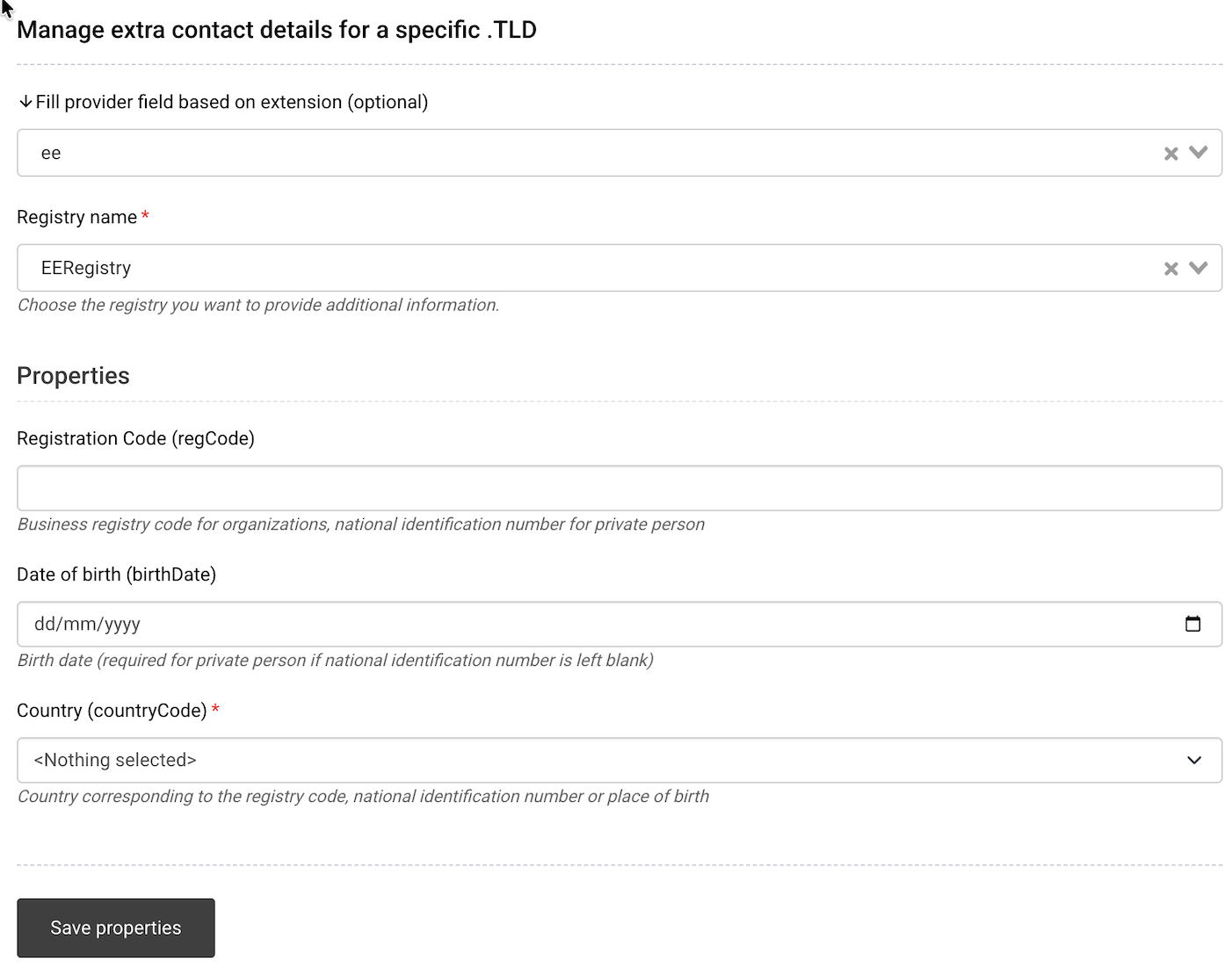
To add contact properties for .EE (EERegistry) to a contact, follow the instructions in the ➤ Contact properties KB-article and follow the instructions up until step #2. Once you select the .EE (EERegistry) contact properties option, the fields below appear.
- 1
-
Registration Code (regCode): Business registry code for organisations, or national identification number for private persons.
⚠️If the registrant is a private person and you do not provide a national identification number, you must provide Date of birth (birthDate) instead.
- 2
-
Date of birth (birthDate): Birth date of the registrant.
⚠️This field is required for private persons if Registration Code (regCode) is left blank.
- 3
-
Country (countryCode): Country corresponding to the registry code, national identification number or place of birth.
- Select the relevant two-letter ISO code from the dropdown (for example EE for Estonia, FI for Finland, DE for Germany).
- Make sure the selected country is consistent with the provided registrant data.
- ⚠️ Incorrect or inconsistent country selection may lead to validation issues during registry checks.
- 4
- Click “Save properties” to confirm adding properties to the contact. Once saved, you can use this contact as the registrant contact for creating, transferring in or updating .EE domains.
Contact properties metadata description
📄 Document requirements
‼️Creates and registrant changes for .EE are subject to a Domain Clearance form. Our support staff will send the clearance form to the registrant email address and provide instructions for signing and returning it. When domain clearance is required, related domain/contact processes will remain suspended until clearance is completed.‼️
⚠️ Important: The Domain Clearance form is sent by our support team after the request is placed (create / trade during transfer / registrant change). The request will auto-fail if clearance is not completed within the stated timeframe.
Domain Clearance (applies to creates and registrant changes)
| Scenario | Required document | Notes |
|---|---|---|
| 🆕 Create |
|
Sent by our support team once the create is requested. |
| 🔄 Registrant change during transfer |
|
Sent by our support team once transfer is requested and a registrant change is performed during the transfer. |
| 🔄 Registrant change |
|
Sent by our support team once a registrant change is requested. |
Additional documents (only if requested)
| Registrant type | Typical documents |
|---|---|
| 👤 Individual |
|
| 🏢 Company / organisation |
|