Update brand contact details
Login to the portal and go to Account > Branding
This article explains how to update the contact details of a brand in your Realtime Register account.
⚠️ Important
If your account contains multiple brands, first select the brand you want to update from the branding overview. If your account contains only one brand, the default brand is opened automatically.
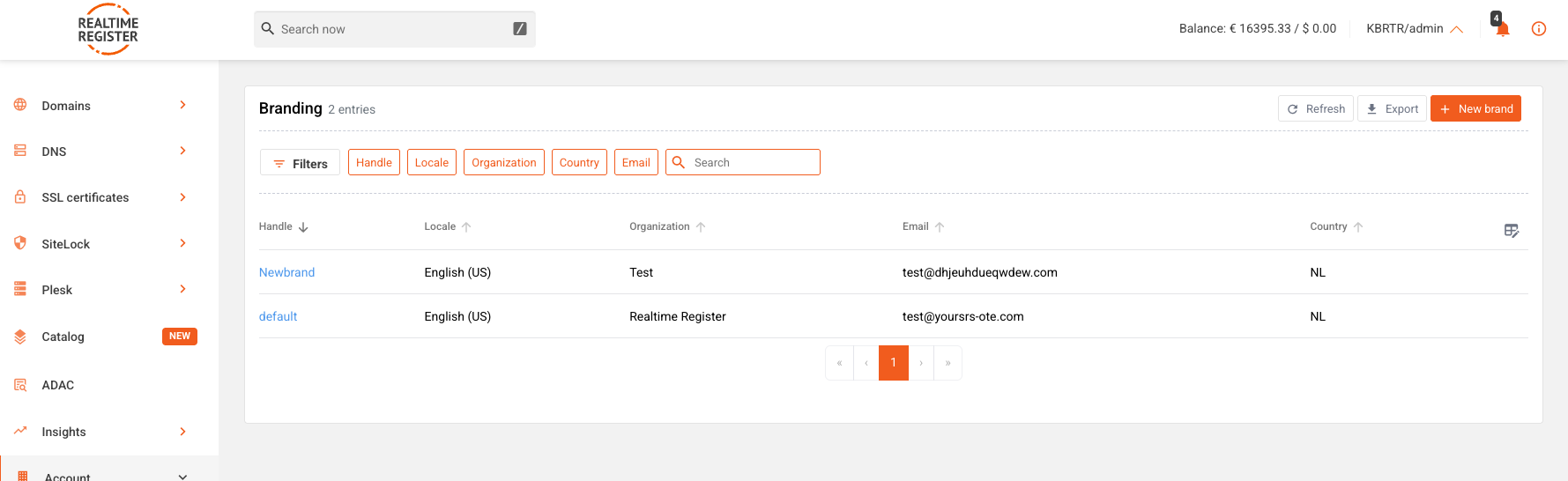
- 1
-
Click Update on the brand detail page.
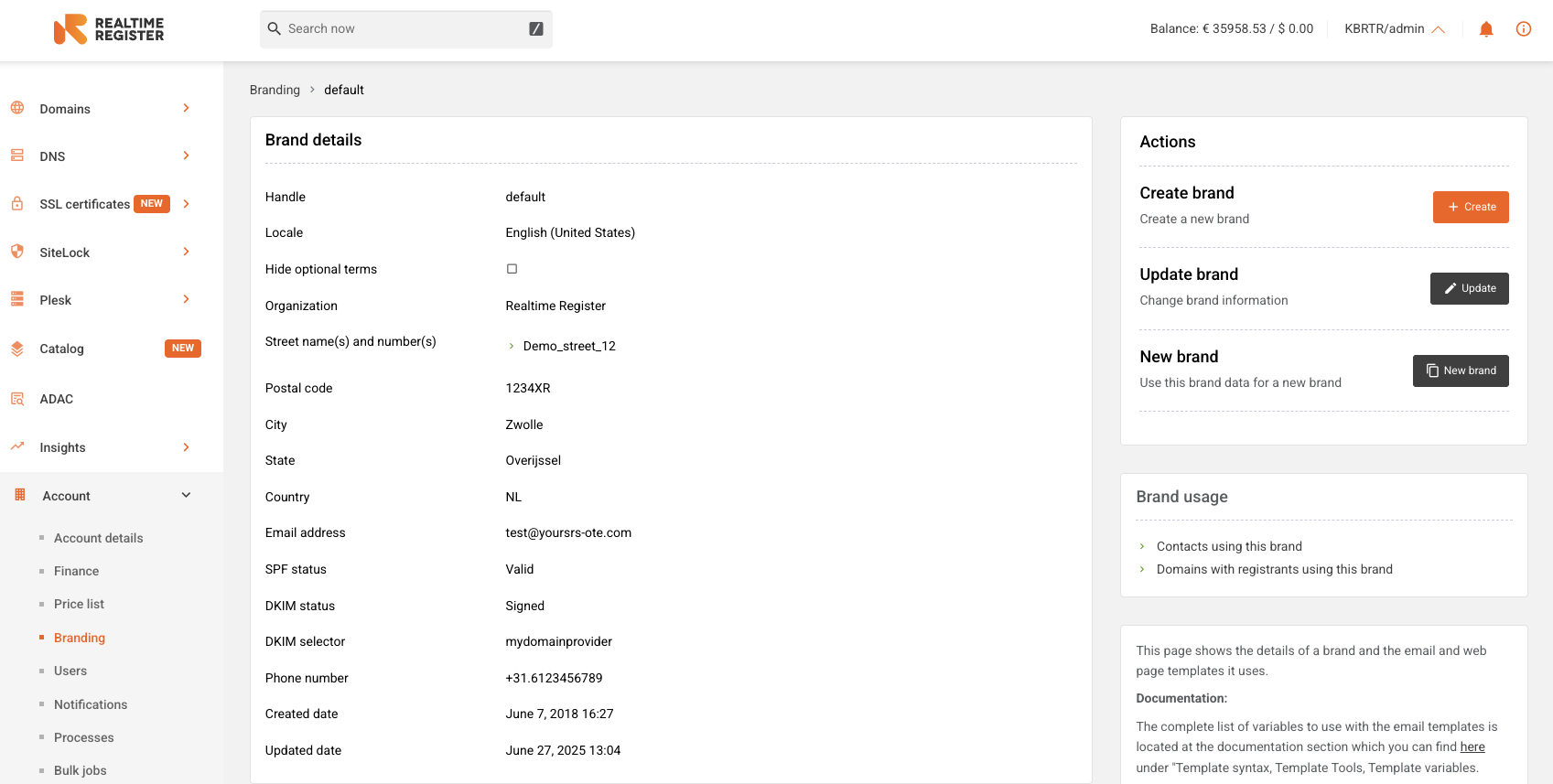
- 2
-
Update the required brand contact details and click Update branding when you are finished. Fields marked with an asterisk (*) are required. We recommend completing as many fields as possible to provide accurate contact information for your customers.
⚠️ Important
SPF & DKIM requirements
If an SPF-record error is displayed while confirming the brand update, verify that the SPF record for your brand email domain has been configured correctly. For instructions on checking and configuring the required SPF and DKIM records, see the ➤ Brand domain SPF and DKIM configuration KB-article.

| Field |
Description |
| Locale |
Select the brand display language |
| Hide optional terms |
Select whether to display optional terms for contacts under this brand |
| Organization |
Provide the brand organization name |
| Street name(s) and number(s) |
Provide the brand street name(s) and number(s) |
| Postal code |
Provide the brand postal code |
| City |
Provide the brand city name |
| State |
Provide the brand state name |
| Country |
Provide the brand country |
| Email address |
Provide the brand email address that sends branded emails for your account from our systems. ( Make sure to provide an email address that is at least recognizable to your customers!) |
| Contact email address |
Provide the contact email address for your customers or third parties to get in touch with you. This email address is displayed when domains are looked up in our provider lookup tool for example: https://realtimeregister.com/resources/locate-your-provider (Make sure to provide an email address that your customers can reach you on, or at least is recognizable to your customers!) |
| Reply-to email address |
Provide the reply-to email address for your customers. This field sets the reply-to email address when customers reply to branded emails sent from our systems to your customers. ( Make sure to provide an email address that your customers can reach you on, or at least is recognizable to your customers!) |
| Phone number |
Provide the brand phone number |
| Fax number |
Provide the brand fax number |
| Contact URL |
Provide a URL that directs to a webpage where customers/3rd parties can get in touch with your company or where is described how to get in touch with your company for support |
| Website |
Provide the brand website address |
| Abuse contact |
provide a brand abuse contact |
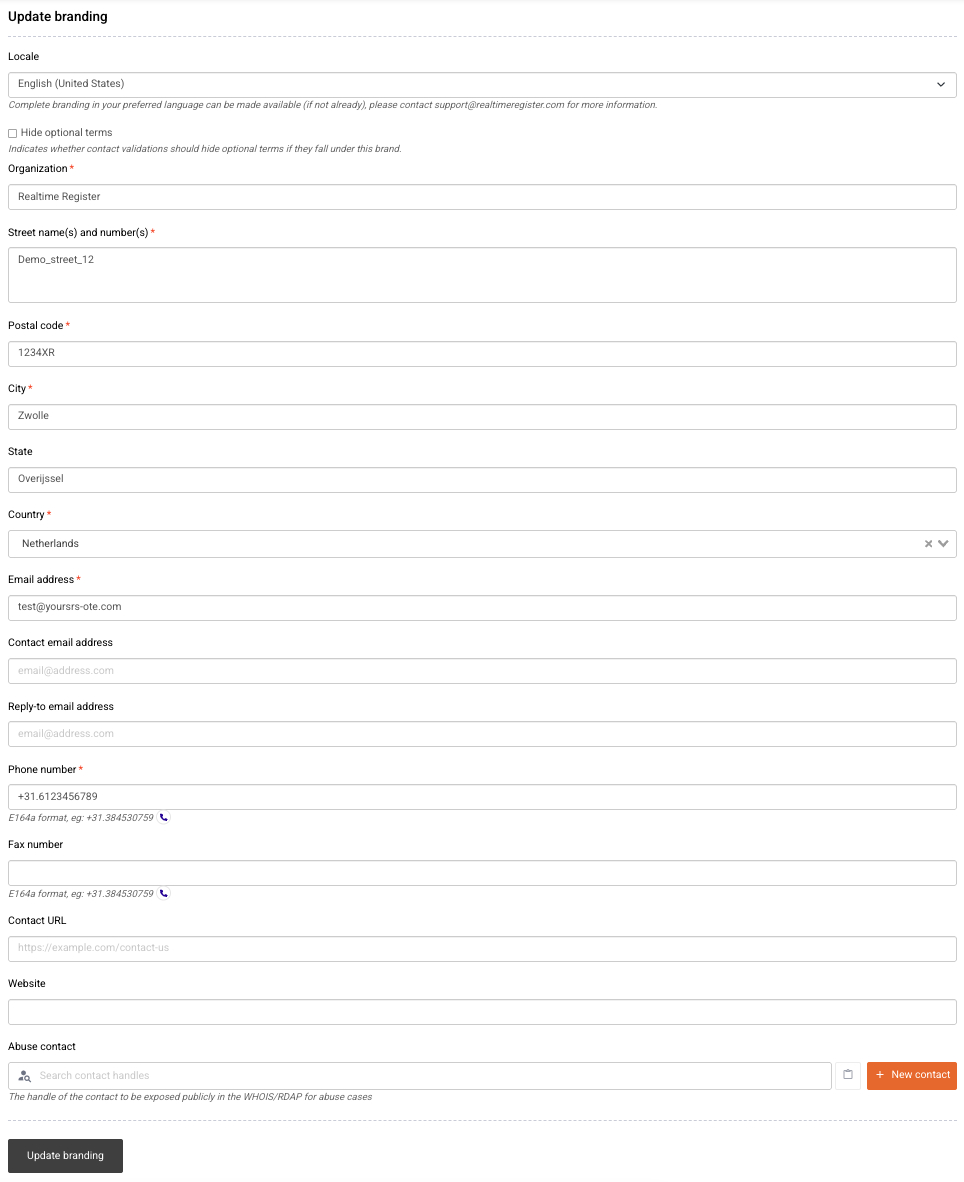
- 3
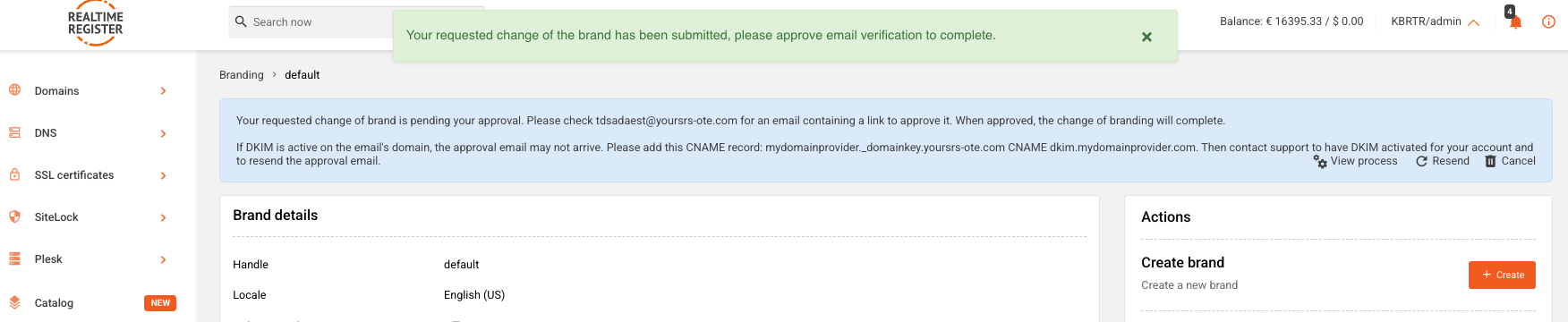
- Depending on the changes made, either a confirmation message is displayed immediately or an approval request is sent to the (new) brand email address.
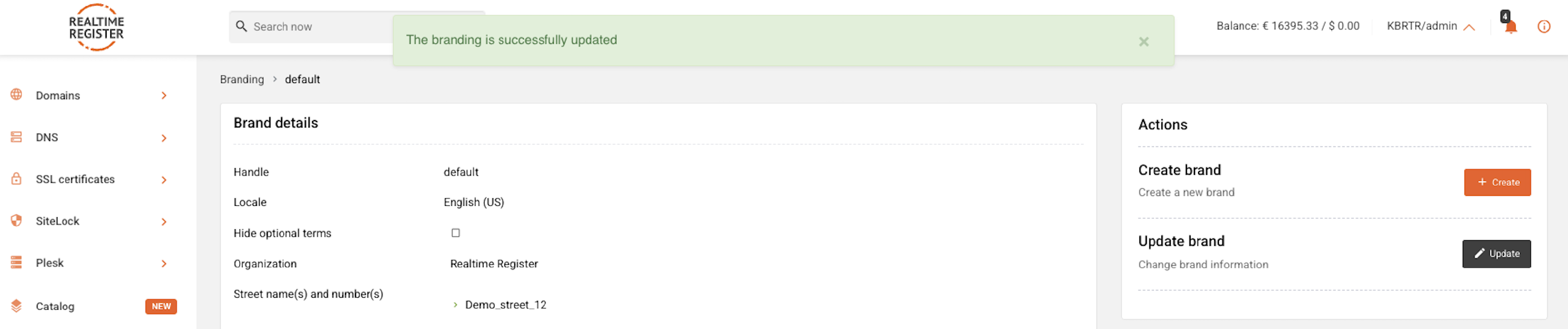
- 4
- If approval is required, approve the request using the email that was sent to the brand email address. Once approved, the brand contact details have been updated successfully.


